Assigning Virtual Meetings to Sessions and Tracks
On Lenos Platform all modules are integrated with each other. Sessions and Tracks module is also integrated with Virtual Programs module. If you have multiple sessions within an event and if you would like to utilize virtual programs with these sessions, you can easily do that by following the steps below.
Step 1:
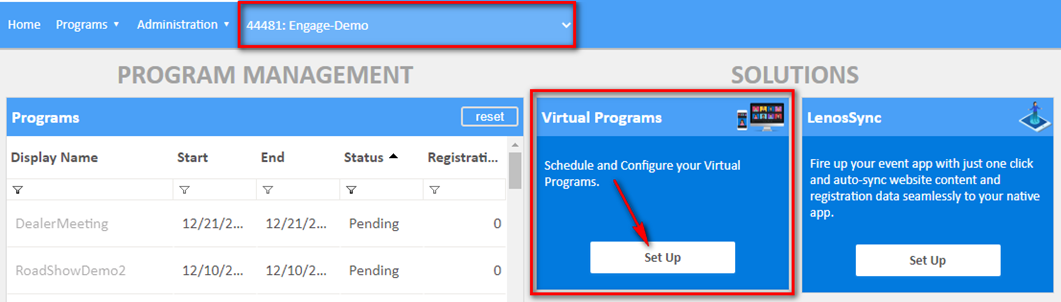
Login to Lenos Reports Portal and make sure you're on working on the desired program (event).
Click on the "Set Up" button under "Virtual Programs" as shown below:
Step 2:
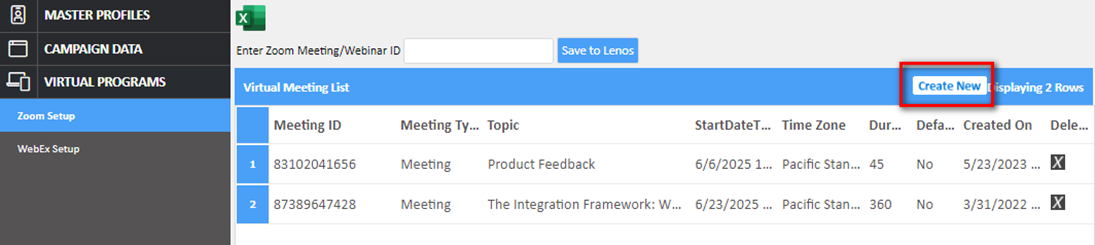
You have options to create Zoom or WebEx meetings. Below example demonstrates multiple zoom meetings associated with this program (event).
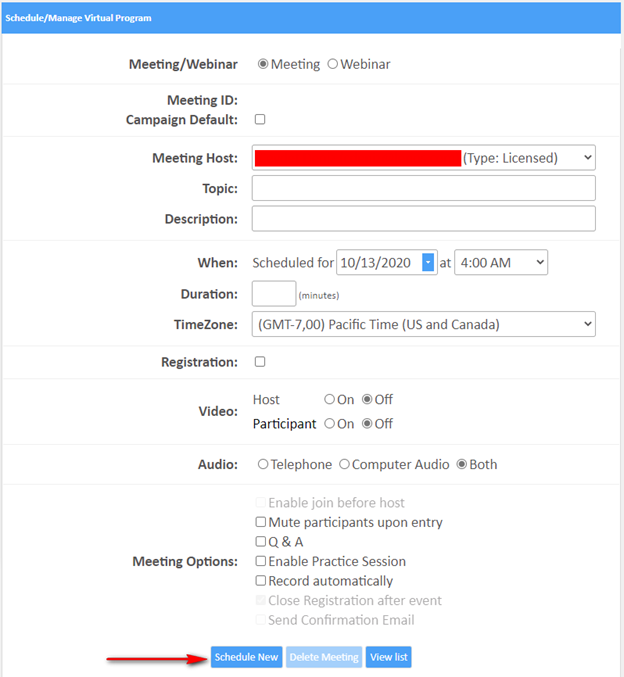
To create a Virtual Program, simply click the "Create New" button to enter Virtual Program details as shown below.
After entering all the details, click the Schedule New button as shown above.
Step 3:
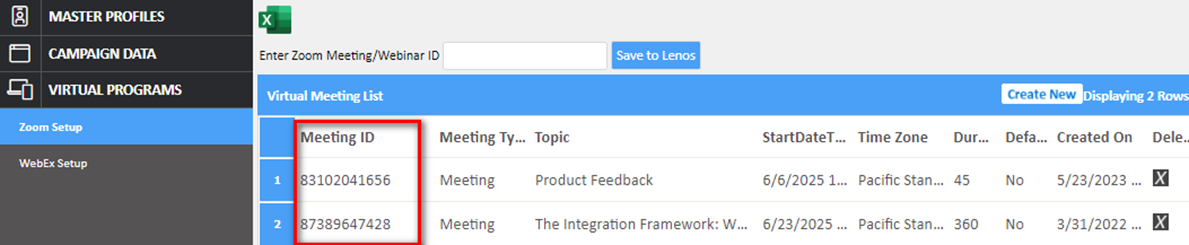
Now that you created your Virtual Program(s), they are listed as shown below with their Meeting IDs.
Step 4:
Enabling a Session Schedule for a Virtual Program is an easy step after these steps.
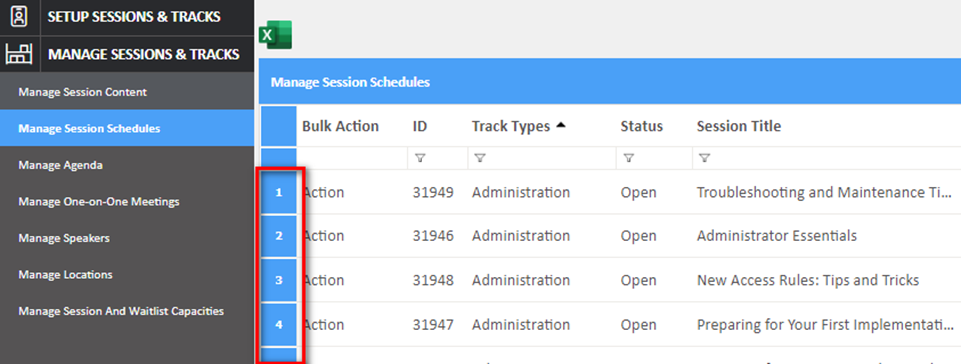
Go to Programs > Program Registration > Session and Tracks. Select the "Manage Session Schedules" under Manage Sessions & Tracks tab as shown below.
From this screen, you can click on the row number of a schedule to open up its details.
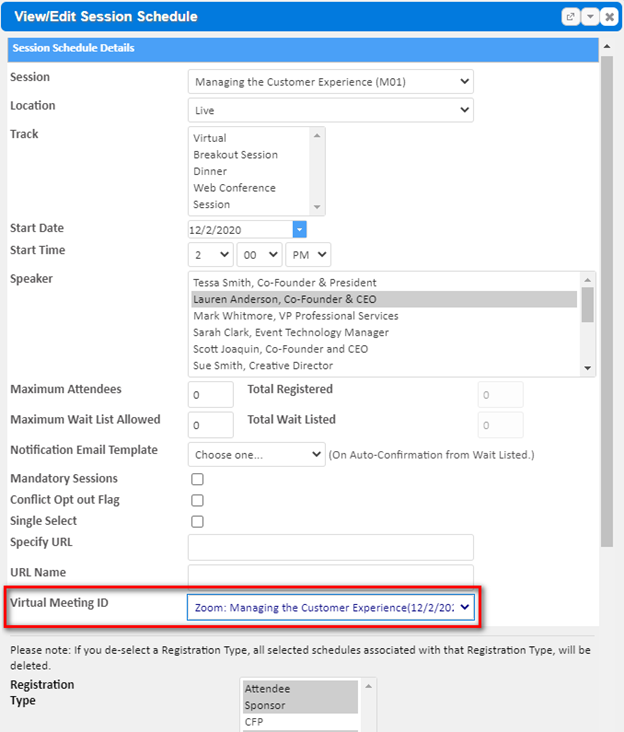
From the Virtual Meeting ID dropdown, select the appropriate Virtual Program for this session schedule as shown below.
To complete this process, scroll down and click the Save button.
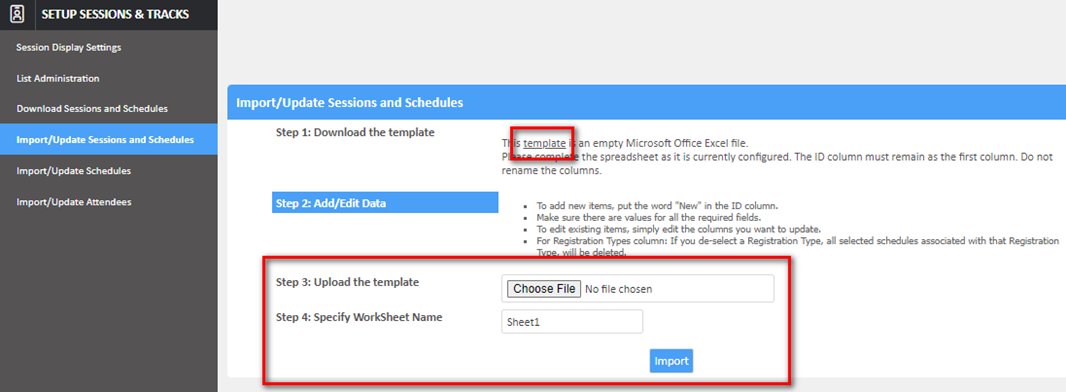
Please note: You can also do this step in bulk for multiple schedules with the excel template upload as shown below.
As a final step, you can double check and confirm these sessions tied to a virtual program.
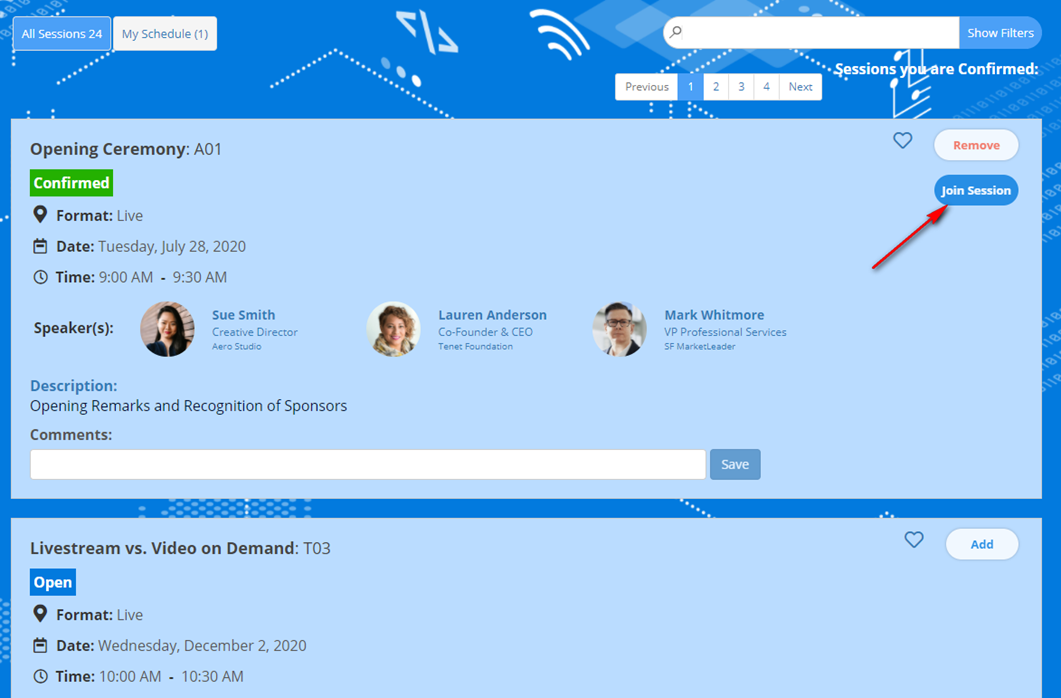
On your website, registrants will see a Join Session button for those schedules associated with a Virtual Program.
Below is an example demonstrating the Join Session button.